Few things are more frustrating than a laptop that takes five minutes to wake up and ten more to open a browser. If you are researching how to speed up a slow laptop, the good news is that most sluggishness is not a death sentence. It is usually the accumulated weight of startup programs, a nearly full drive, hungry browser tabs and years of skipped maintenance. Work through the fixes below in order and most machines feel dramatically quicker within an hour — often without spending a penny.
Why Your Laptop Slows Down
Laptops rarely slow down because the processor wears out. They slow down because the demands on them grow while their resources stay the same. Operating systems add features, apps get heavier, and every program you install quietly asks for a slice of memory and a place in the startup queue. Meanwhile your storage fills with downloads, photos and forgotten installers, leaving the system little room to breathe.
Heat plays a part as well. Dust-clogged vents force the processor to throttle itself to stay cool, so a five-year-old machine can spend much of its time deliberately running below its capability. Understanding these causes matters, because each one has a different fix — and the free fixes come first.
How to Speed Up a Slow Laptop for Free
Start with startup programs. On Windows, open Task Manager and review the Startup tab; on a Mac, check Login Items in Settings. Anything you do not need the moment the machine boots — chat apps, game launchers, updaters — can be disabled safely. This single change is often the difference between a two-minute boot and a twenty-second one.
Next, free up storage. Aim to keep at least 15 to 20 percent of your drive empty. Delete old downloads, empty the recycle bin, uninstall programs you have not opened in a year, and move bulky photo and video archives to an external drive or cloud storage. A drive gasping for space slows everything that touches it.
Then tame the browser. Browsers are the heaviest app most people own. Remove extensions you do not recognise, close the graveyard of pinned tabs, and clear the cache. Anyone who has tried to research a budget-friendly weekend getaway across thirty open tabs on a struggling machine knows how quickly a browser alone can bring a laptop to its knees.
Check for Malware and Misbehaving Apps
If the slowdown arrived suddenly, suspect software behaving badly before you suspect the hardware. Run a full scan with your built-in security tool, and look at which processes are using the most CPU and memory when the machine should be idle. A single runaway app — a sync tool stuck in a loop, an updater retrying forever — can consume the whole machine.
Updates deserve a mention here too. It feels backwards, but pending system and driver updates are a common cause of background churn: the machine is slow precisely because it is trying to finish updating. Connect to power, run every pending update, restart, and only then judge what is left to fix.
Settings That Trade Looks for Speed
Modern systems spend real resources on looking pretty: transparency effects, animations, shadows and live widgets. On an older laptop, switching visual effects to a performance-oriented setting reclaims a surprising amount of responsiveness, especially when opening windows and menus.
Power settings matter as well. Many laptops ship in a balanced or battery-saver mode that caps performance even when plugged in. When you are working at a desk, switching to the high-performance profile while on mains power lets the machine use everything it has. Just remember to switch back before you rely on the battery for a long day away from a socket.
Hardware Upgrades That Actually Help
If software fixes are not enough, two upgrades deliver almost all of the real-world gains. The first is storage: replacing an old spinning hard drive with a solid-state drive is the single most transformative upgrade a laptop can receive, cutting boot and load times dramatically. The second is memory. Moving from 4 GB to 8 GB, or 8 GB to 16 GB, stops the machine from swapping data to disk every time you switch between apps.
Before buying anything, check whether your model allows upgrades at all — many slim laptops have soldered memory — and whether the cost makes sense against the machine’s age. And if you travel with your laptop, protect the investment in transit: the principles in our guide to how to pack light for a week-long trip apply just as well to keeping a computer safe in a crowded bag. The same care matters on the road, where hotel networks and shared spaces — the kind of stays rounded up in our Coupeville hotels guide and our look at the Hotel Royal Bibione in Italy — make a healthy, updated machine far safer to use than a neglected one.
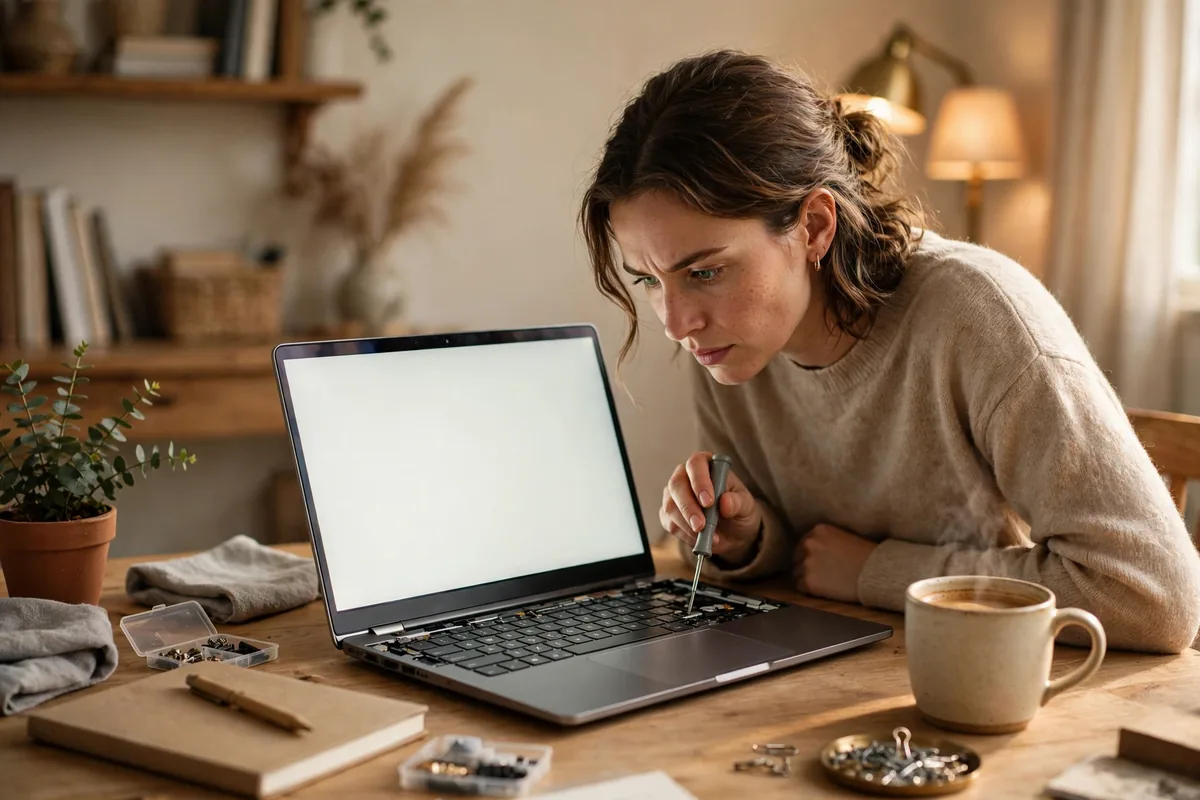
One more low-cost step before spending money: give the machine a physical clean. Powered off, a few short blasts of compressed air through the vents can clear years of dust, and simply raising the rear of the laptop on a book or a stand improves airflow more than most people expect. A cooler laptop is a faster laptop, because the processor stops protecting itself by slowing down. If the battery has swollen or the case feels unusually hot in one spot, though, stop and have it inspected — those are safety issues, not performance ones.
Habits That Keep It Fast
Speed is a habit, not an event. Restart the machine weekly rather than sleeping it for months. Uninstall software when you stop using it instead of letting it accumulate. Keep the vents clear, use the laptop on hard surfaces, and treat “free” toolbars and cleaners with deep suspicion — they are a leading cause of the very slowdowns they promise to cure.
Work through the fixes in this guide and a laptop that felt finished often turns out to have years left in it. And once the machine is quick again, use the reclaimed time well: close the lid, get outside, and maybe even try our beginner plan for how to start running — some upgrades are for the hardware you carry around in your own body.
More Guides for Getting More from Your Tech and Time
A faster laptop makes everything else on your list easier. If your machine is mainly for learning, our guide to choosing an online course that is worth your time helps you spend the reclaimed speed well, and building a morning routine that actually sticks protects the productive hours a slow computer used to eat. When the work is done, our movie night at home guide turns the same laptop into the evening’s entertainment, and travellers will appreciate packing light for a week-long trip — a lighter bag and a faster machine are the same philosophy. Short on time overall? A budget-friendly weekend getaway is the reset that makes Monday’s boot-up feel quicker too.